Assign a Tag to an Active Call
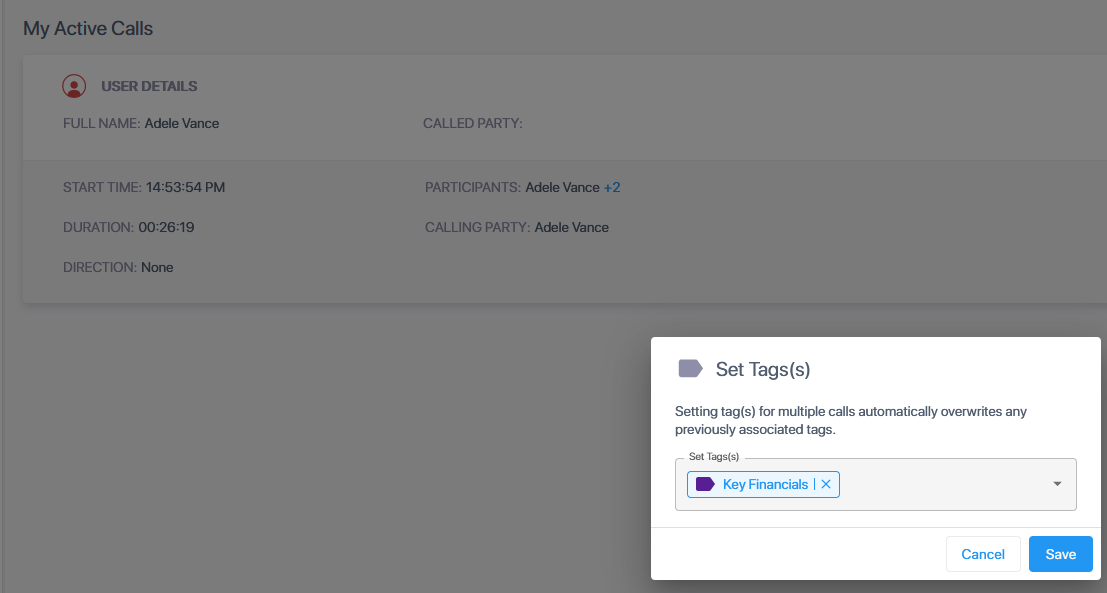
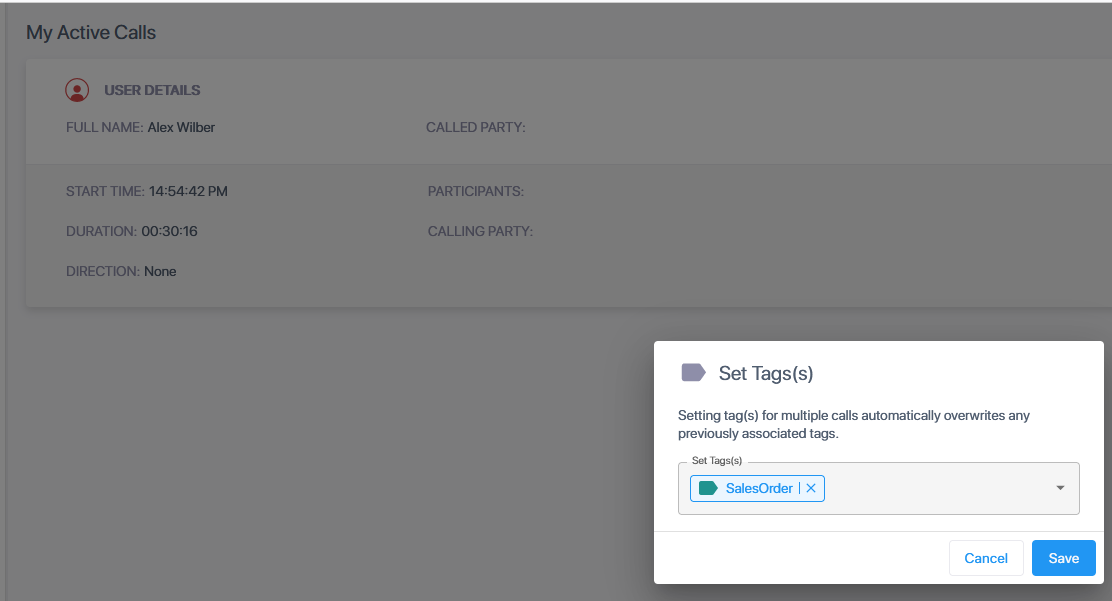
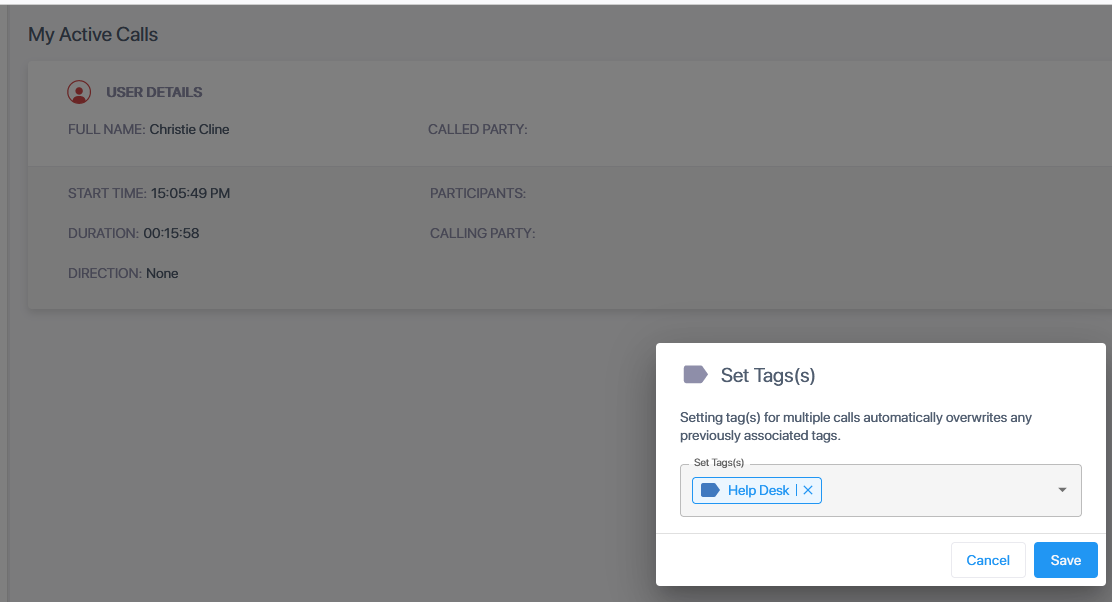
You can assign tags to Active Calls, where the tag serves as a reminder or keyword that can be later used to retrieve the call details and for segmentation in call analysis. In the example below, an Active Call is shown with three participants where a different tag is assigned to each participant in the call.
| ➢ | To assign tags: |
| 1. | In the Icon pane, click  . . |
| 2. | Click the Tag icon  adjacent to the call that you wish to tag. adjacent to the call that you wish to tag. |
The figure below shows the Active Calls screen with Global admin permissions where each call participant is displayed a separate leg.
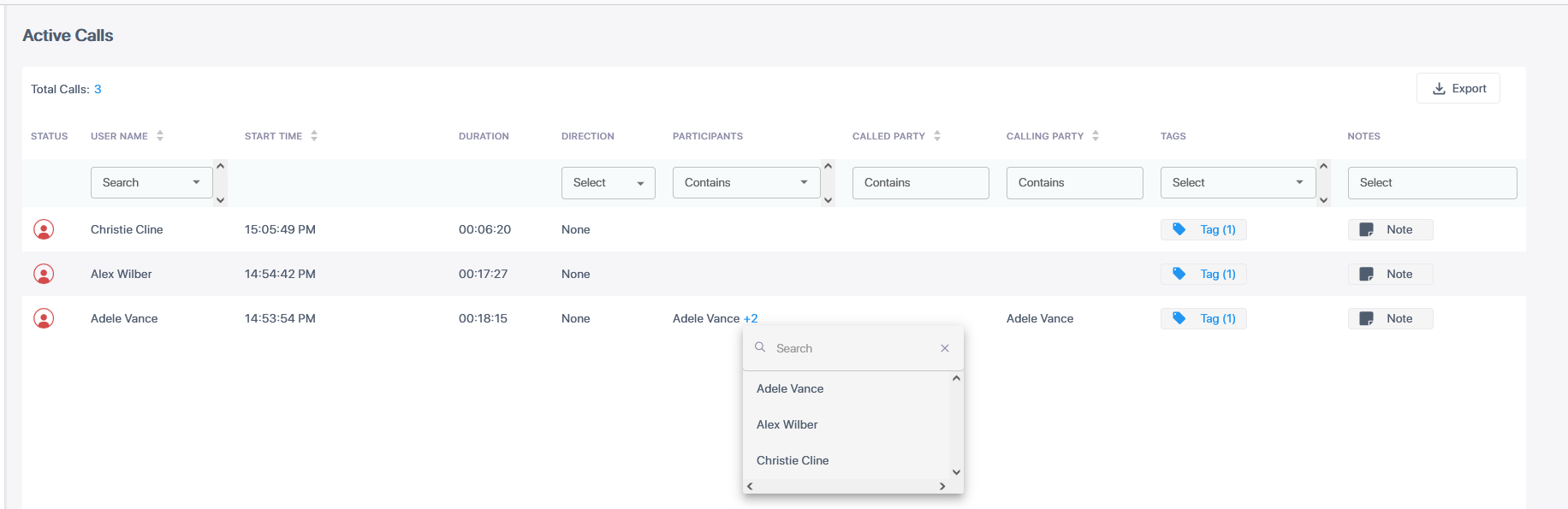
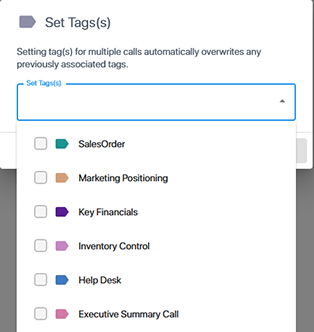
| 3. | From the Set Tags drop-down list, select the check box adjacent to the tag that you wish set. |
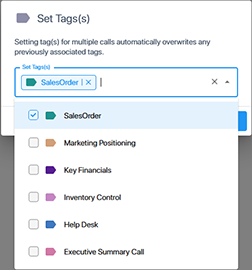
| 4. | Click Save. |
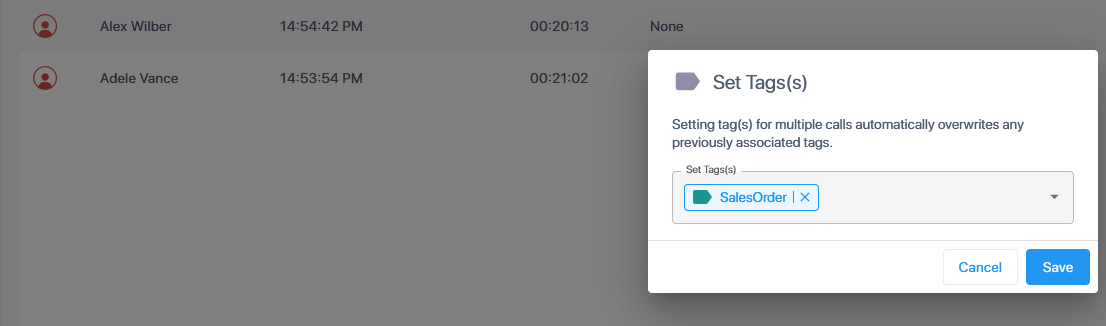
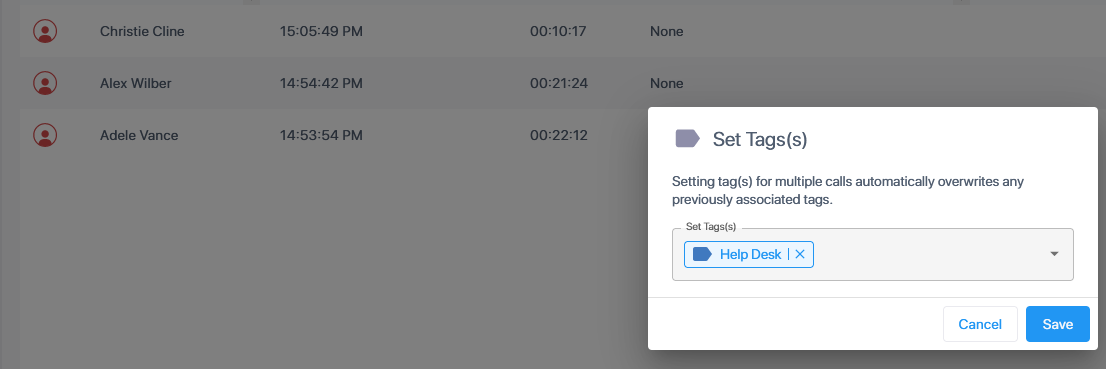
The figures below show the separate tags that are assigned to each user participant in the Active call.

The examples below show the My Active Calls tab for each respective call participant where in each case the logged in user is the user shown in the screen.